
On this page
How to use CopyTT
Choose the website for an occasional public link, or the extension when you regularly save media from the TikTok page you are viewing.
Download from the website
No installation or account is required for supported public posts.
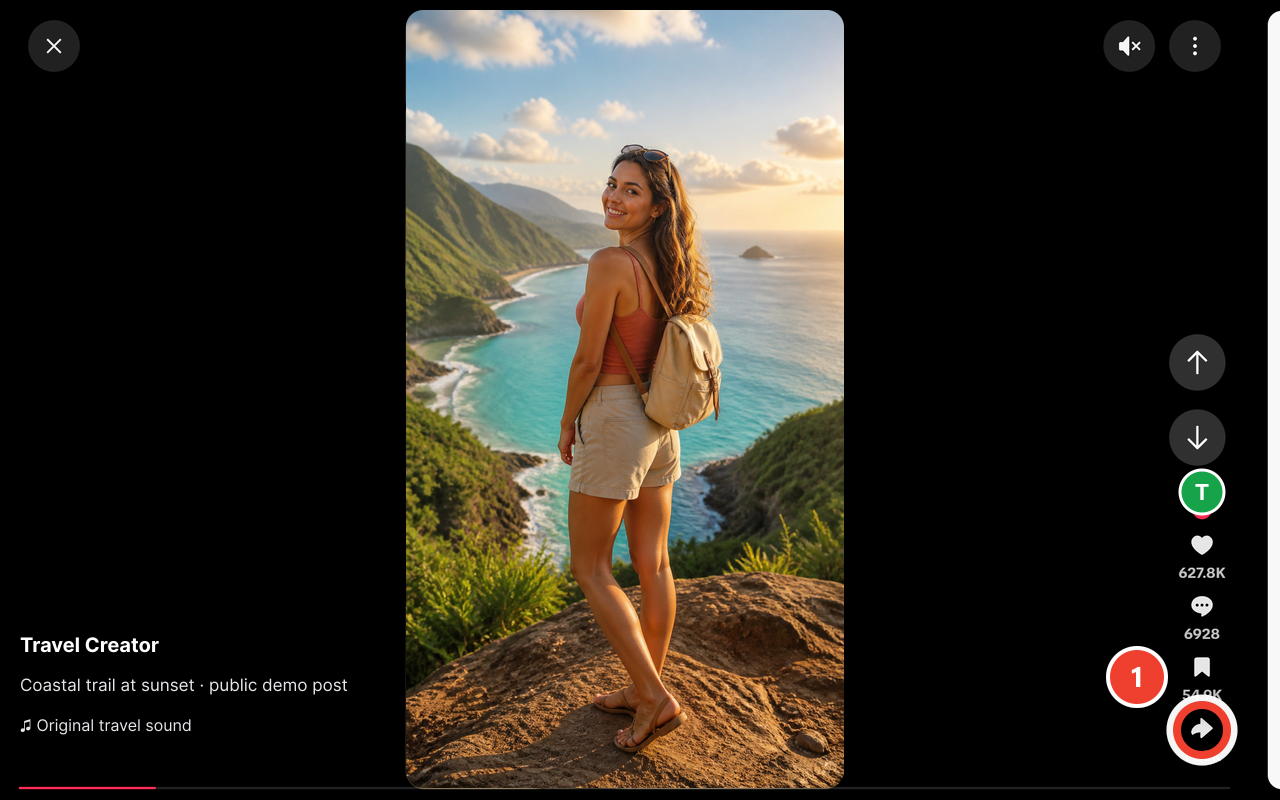
Copy the public TikTok link Copy the public TikTok link
Open a video or Photo Mode post, choose Share, and copy the link.
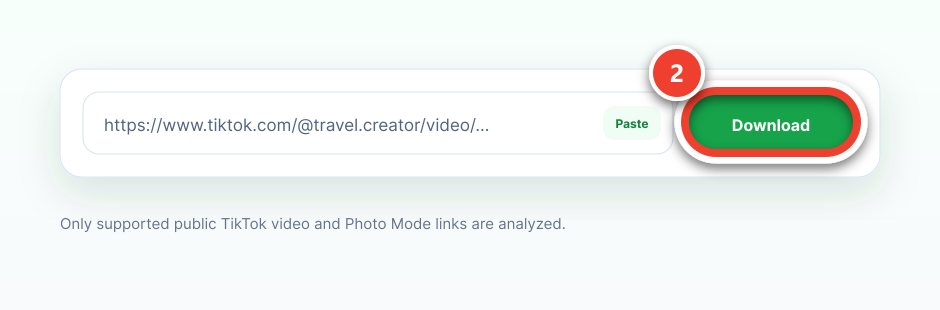
Paste and analyze Paste and analyze
Paste the link into CopyTT and choose Download. The first request goes directly to media analysis without a browser verification widget.
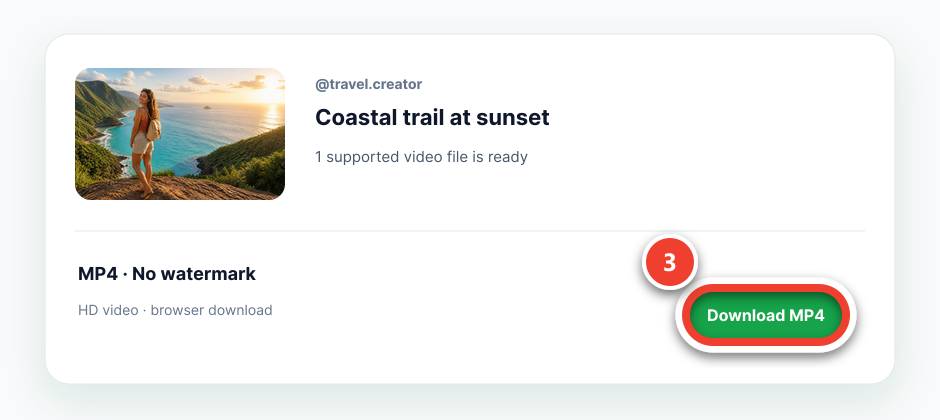
Choose the file Choose the file
Download an eligible no-watermark MP4 or save the original photos listed for the post.
Continue with:Save Photo Mode imagesTroubleshoot a failed download
Download from the TikTok page
The extension connects each button to supported media already loaded in your current tab.
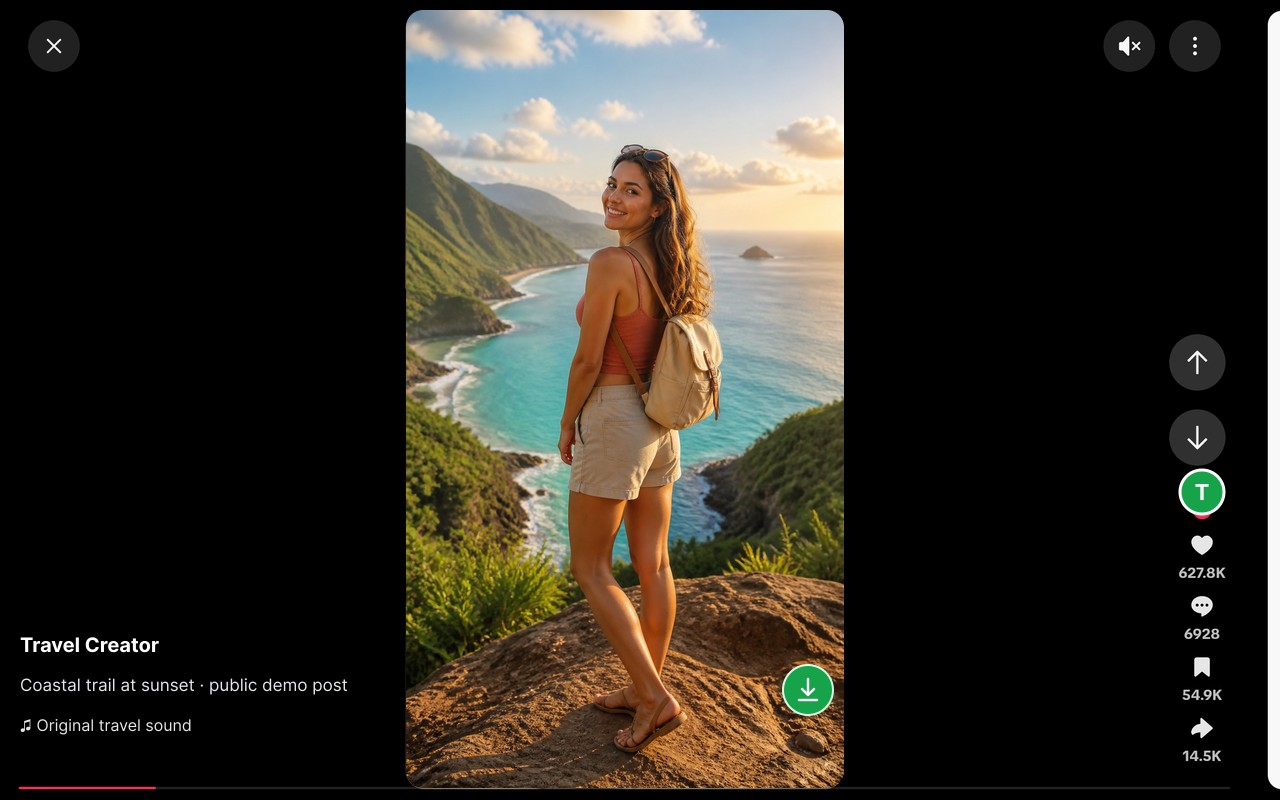
Open a supported TikTok page Open a supported TikTok page
Use Chrome 120 or later and open a video, Photo Mode post, feed, or supported recommendation card.
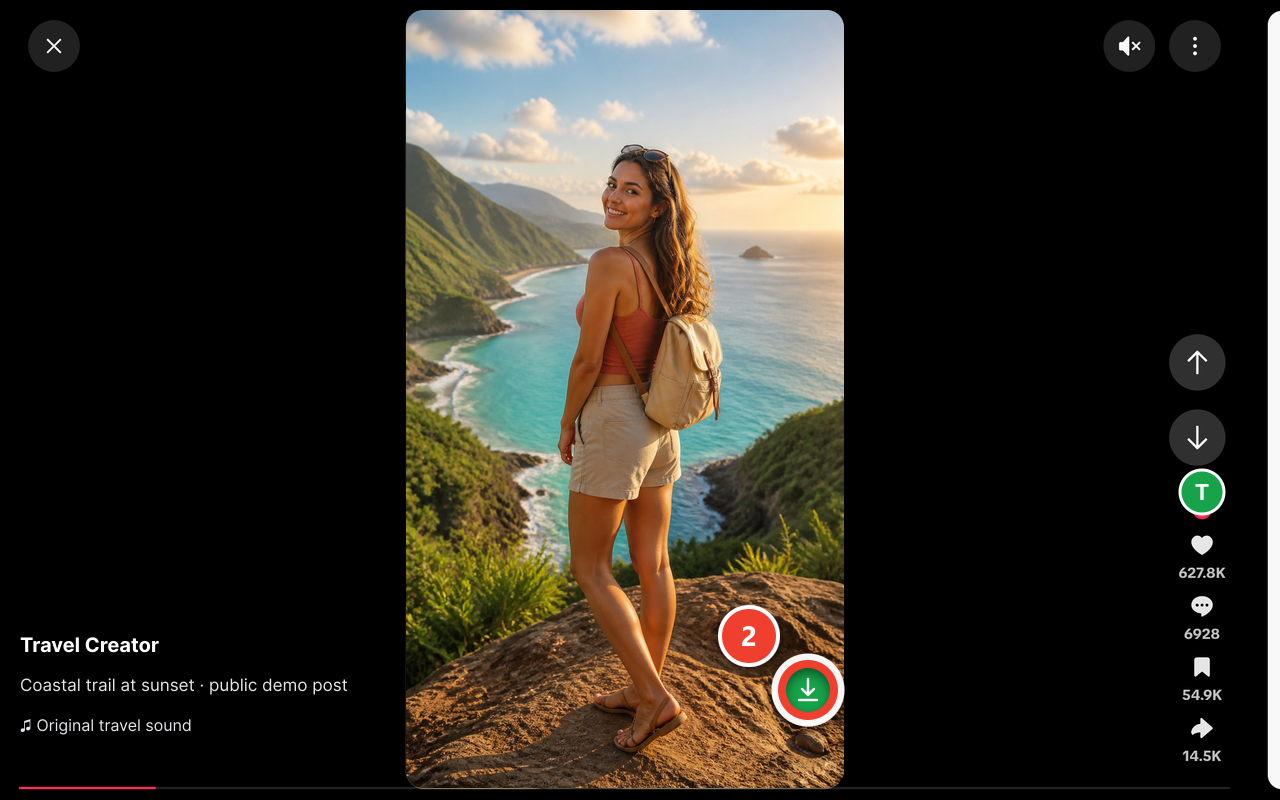
Select the CopyTT button Select the CopyTT button
Choose the button attached to the exact video or image you want. The extension rechecks the page and post binding.
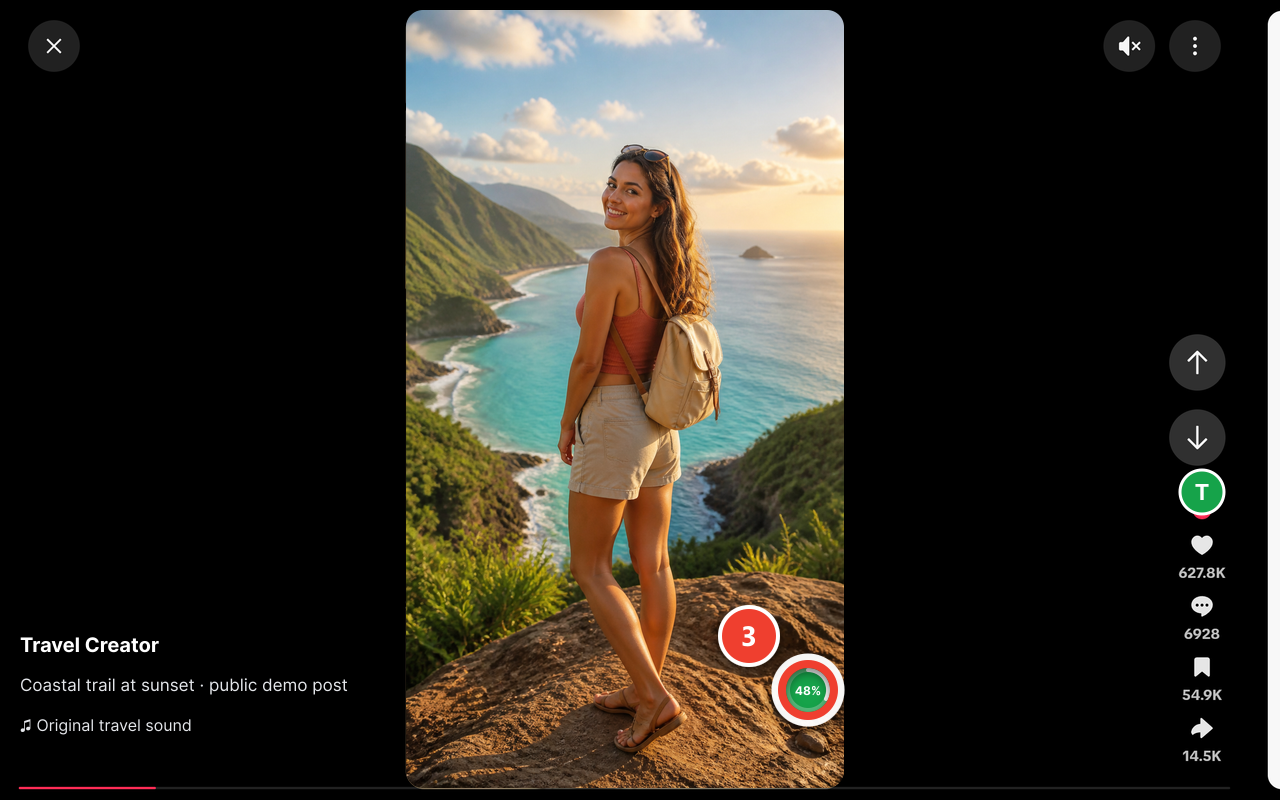
Follow browser download progress Follow browser download progress
The browser saves the selected file. CopyTT shows preparation, byte progress, completion, or a clear failure state.
Continue with:Find the downloaded file on your computer
Important limits
Neither path creates access to content you cannot already view.
- Public-link website requests are limited to supported public posts.
- The extension does not export TikTok passwords, cookies, or access tokens.
- Downloading does not grant permission to republish or redistribute media.
How-to questions
Which method should I use?
Use the website for a copied public link. Use the extension for frequent downloads from media already visible in your TikTok tab.
Why is there no video option?
CopyTT shows a video only when it can confirm an eligible no-watermark source. Some posts expose photos only or no supported source.
Where is the saved file?
Your browser controls the location. Check its Downloads list, your Downloads folder, or the Files app on iPhone and iPad.
Ready to try it?
Open the downloader or browse focused troubleshooting guides.